To install the ProntoGERBER-CONNECTION software click or cut and paste into your browser the following link:
https://www.unisoft-cim.com/download/requests/gerber-connection/gerber.zipAfter the download is complete unzip GERBER.ZIP then double-click on GERBER.EXE and follow the instructions on the screen to install the software. Please accept the default path on installation, it can be changed later.
The software is now installed and ready to use.
Installation troubleshooting: Go to https://www.unisoft-cim.com/installation-troubleshooting.html
We are available anytime to go online with you and help you review the Unisoft software. Also the software has HELP for most menu items by hovering over the menu item for a second then click any of the videos, manual or website links.
*** It is advisable to print out this document and follow along the procedure below! ***
a) Click the ProntoVIEW-MARKUP icon located on the Windows desktop to
start the Unisoft software.
b) In the Unisoft software,
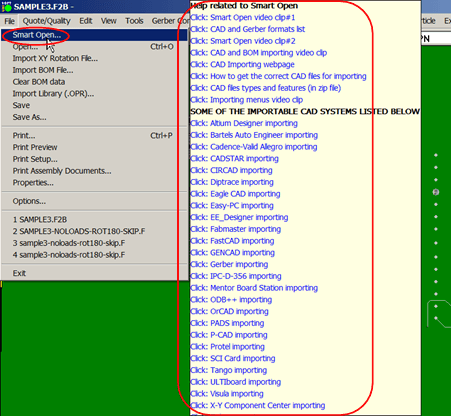
click FILE from the main menu, click SMART OPEN and a new window opens.
c) In the new window browse to & select the directory by
default c:\program files (x86)\unisoft \data-files then click OK . A
new window opens, select the file sample3.f2b and click OK.
The "Messages from Importer Module..." window opens. Click CLOSE and the PC
Board is now displayed. NOTE: The SMART OPEN feature looks at all the files
for your project in
the folder and
subfolders of the folder selected and then presents you with only the
correct PC Board, CAD and Gerber files that can be imported into the Unisoft
software.
d) From the main menu click QUOTE/QUALITY, click
ASSEMBLY COST OR CYCLE TIMES BY COMPONENT SPAN & in the window displayed
click REPORT- FULL TEXT. The report
displayed is the cost or time for the assembly of the PC Board. Click OK &
CANCEL to close the windows.
e) From the main menu
click QUOTE/QUALITY, click PART OR ASSEMBLY COST OR CYCLE TIMES BY P/N. This
report represents part or assembly cost or cycle times for the PC Board.
Click OK to close the window. Contract & OEM Electronic manufactures find
this report & the one above useful for generating quotations, cost and time
estimates.
f) From the main menu click QUOTE/QUALITY
then click SOLDER JOINT COUNT. This report is the total solder joint count
for the PC Board broken down by SMT, Thru-Hole and part number.
This report is used by Contract and OEM manufacturers for quality tracking.
Click OK to close the window.
g) Also, on the
QUOTE/QUALITY menu the EXPORT STANDARD BOM allows you to export
several normalized standard BOM formats. All types of Bill of Material (BOM)
formats can be
imported into
the Unisoft software and then exported to normalized standard BOM formats
that can then be utilized by your other manufacturing software systems such
as Part Sourcing, MRP,
ERP,
etc. This feature is located on the main menu item QUOTE/QUALITY
under "Export Standard BOM file...".
h) From the main
menu click ASSEMBLY SHEETS/1ST ARTICLE then click OPEN SMART
COLOR OPERATIONS and a new window appears at the bottom.
i) This SMART COLOR OPERATIONS window at the bottom is sortable either by
Part Number, Step Number, N=number of components for that part number,
operation, number of pins on the
component, etc. First article inspection, assembly process sheets creation,
kitting labels, etc. are all done here. More details on this and the other
menus and features are outlined in the tutorial below.
j) Click FILE from the main menu, then click EXIT then click NO and the
software exits.
a) Click the ProntoVIEW-MARKUP icon located on the Windows desktop to start
the Unisoft software.
b) In the Unisoft software, click FILE from the main menu, click OPEN, click
CONTINUE and click the pull down menu next to "LIST FILE TYPES", for the
sample PCB select the "Accel PCAD file (*.PDF)"
file type (note the list sorts by extension so you will find it about 8 up
from the bottom).
c) Next select the directory the CAD file is located in by clicking the
pull-down menu next to “LOOK IN” at the top of the window. Select the
directory “c:\program files (x86)\unisoft” then select the
file SAMPLE.PDF and click OPEN.
d) An "Assembly Cost or Cycle Times" window is displayed which contains an
estimate of the cost or time to assemble the PC Board based on the device
package counts. Contract and OEM Electronic
manufactures find this report useful for generating quotations, cost & time
estimates. Click OK to close the "Assembly Cost or Cycle Time" window. If
you are using the trial version of the software a
MESSAGE FROM IMPORTER MODULE window may appear and if it does, then click
CLOSE. The PC board is now displayed.
a) Click FILE from the main menu then click CLEAR BOM DATA.
b) Click FILE on the main menu then click IMPORT BOM FILE. Make sure [Default] in the window displayed is selected. Click IMPORT and select the file
SAMPLE.BOM in the window displayed, then click OPEN.
The BOM importer window is displayed. Click CLOSE to shut the BOM window.
c) The BOM data has been imported. To display the BOM data from the main menu click ASSEMBLY SHEETS/1st ARTICLE then click OPEN SMART COLOR OPERATIONS and a new window appears at
the bottom. Note the correct part number, description, device type, etc. from the BOM is displayed.
d) Click FILE from the main menu, then click EXIT then click NO and the software exits.
Later in this tutorial you can import your own CAD and BOM files if you wish. The tutorial continues below and details the other menus and features of the software.
Next go to step 2 below.
The manual below is the "UNISOFT ProntoGERBER-CONNECTION QUICK START MANUAL" and contains the ProntoGERBER-CONNECTION tutorial. If you wish the same manual is also located in the Start/Programs Menu under the "Unisoft ProntoGERBER-CONNECTION Software" folder. If you can not find the icon, the file location for the manual is c:\program files (x86)\unisoft\quick-start_gerber-connection.doc.
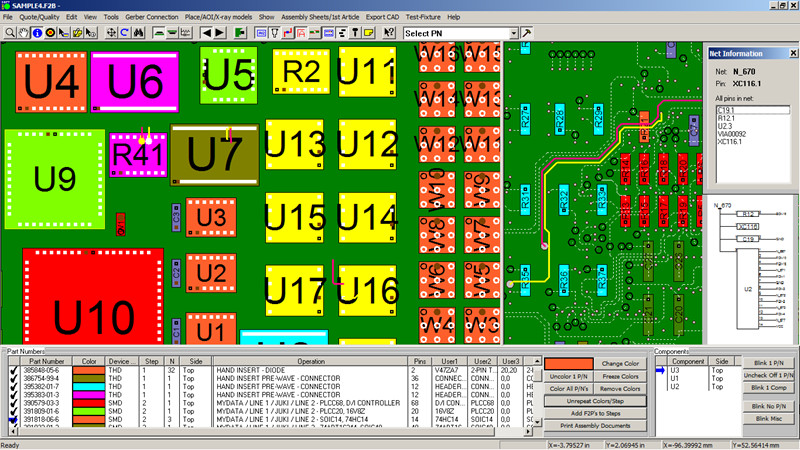
The Unisoft ProntoGERBER-CONNECTION software translates Gerber and Bill of Material (BOM) files into real reference designators, netlists, theta rotation, part numbers, X/Y component pin geometries, values, tolerances, etc. This data is then used by Process Engineers to create manual assembly sheets, process documentation, First Article Inspection, program SMT and Thru-hole Automatic Assembly Equipment, AOI/X-RAY inspection equipment, and by Test Engineers to program Automatic Test Equipment and aid repair, rework, etc.
This installation is for either trial users or customers that have a subscription or have purchased or rented the software. In trial mode the software is fully functional with limits only on the size of the CAD input file and output files created. Once the software is purchased or rented it will be activated fully. If you have a subscription or have purchased or rented the software the email you received will detail how to fully activate the software.
IMPORTING CAD FILES: A list and samples of the CAD file formats Unisoft imports are on our website at https://www.unisoft-cim.com/importers.php.
We are here to help as you install and review the software. For assistance call us (enable JavaScript for our phone number) or email us (enable JavaScript for our email address).
Thank you
*** It is advisable to print this document and follow along the procedure below! ***
Thank you for evaluating the Unisoft ProntoGERBER-CONNECTION software. In minutes Unisoft ProntoGERBER-CONNECTION software translates Gerber and Bill of Material (BOM) files into real reference designators, netlists, theta rotation, part numbers, X/Y component pin geometries, values, tolerances, etc. This data is then used by Process Engineers to create manual assembly sheets, process documentation, First Article Inspection, program SMT and Thru-hole Automatic Assembly Equipment, AOI/X-RAY inspection equipment, and by Test Engineers to program Automatic Test Equipment and aid repair, rework, etc.
For those who need it, such as Test engineers, ProntoGERBER CONNECTION has the unique feature to automatically create the Netlist from your raw gerber files in addition to the real reference designators, theta rotation, part numbers, X/Y component pin geometries, values, tolerances, etc. The netlist is a mandatory item for most Test Departments and repair technicians. ProntoGERBER CONNECTION does this by automatically tracking and connecting the copper traces on the PC Board assembly to the correct components, pins and vias for each net.
In this "quick start" overview of ProntoGERBER-CONNECTION we will process a sample PC Board provided and you can also process one of your own PCB assembly ( PCBA ) . For help and questions call us (enable JavaScript for our phone number) or email us (enable JavaScript for our email address).
We will import the top artwork gerber layer on the sample PC Board provided.
This step teaches the system some intelligent information about a component U1. Next we will have the software automatically find similar component shapes to U1 and quickly teach those parts.
Note steps 2 & 3 adds intelligence to the gerber files by defining the components on the display. If you simply wish to display the PC assembly gerber layers, print them or add annotation notes then you need to perform only step 1 above.
***We suggest you printout this document to follow along.***
To start the software click START on your Windows desktop then click PROGRAMS if required in your version of Windows and select the Unisoft ProntoGERBER-CONNECTION Software or Unisoft ProntoVIEW-MARKUP Software folder and click the icon "ProntoGERBER-CONNECTION" or "ProntoVIEW-MARKUP" inside that folder. The "About Unisoft OneFACTORY" window will appear briefly and automatically disappear in a few seconds. By default it comes up in split screen mode. Place your mouse on the split screen vertical divider line hold down the mouse key and drag the divider line all the way to the right.
Below is the pull down GERBER CONNECTION menu we will be working with for the majority of this process.

Click FILE from the main menu, then click SMART OPEN, from the dialog box displayed select the directory DATA-FILES (located in the directory c:\program files (x86)\unisoft(x86)\data-files). Click OK.

The following window will be displayed. Scroll down the window until you see the file sample-gerber.ger and click on that file to select it. Click OK.

The following window will be displayed.

Next put a check mark in the box to the left of "Add sample-gerber.ger to list of files to be imported". Note as layers are added the "Not selected" in the thumbnail image will turn to red with the layer information.

Importing additional gerber layers: Note for this demonstration we are importing only one gerber layer file so please Do Not Perform This Step: The software can also import additional gerber layers such a silk screen to provide added information and detail or bottom layers if required. For example, to add a TOP Silk Screen layer go to the top of the screen above and click the thumbnail of the silkscreen gerber file you wish to import. Next put a check mark in the box to the left of "Add sample-gerber.ger to list of files to be imported". Next select the layer type as TOP SILK. Repeat this process for any additional layers that need to be added.

Yes Perform This And The
Following Steps: Next click IMPORT FILES.

The following confirmation window will be displayed. Click YES.

The top of the PC board is now displayed.

Next zoom into the lower left quarter of the PCB. There are several ways to zoom in or out. The simplest is to position your mouse in the center of the area you want to zoom into and then use the thumb wheel on the mouse to zoom in. Another way to zoom in is from the main menu click TOOLS then ZOOM TOOL then click and hold down your left mouse button and drag a rectangle in the lower left section of the board and release.

Select Component — Click the select tool (bulls eye) then locate the component U1 (U1 is the component in the lower left corner of the PC-Board — see illustration below.). Click the left mouse key and drag a rectangle around the 64 pins on the component and release the mouse. The 64 pins should now be selected and will be enlarged.
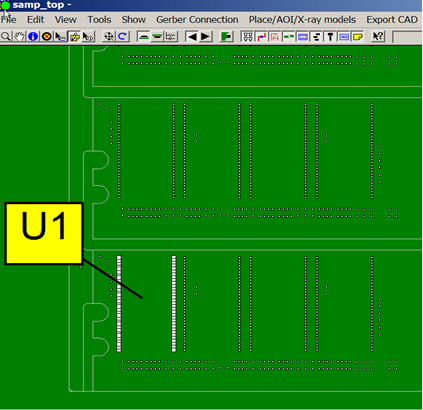
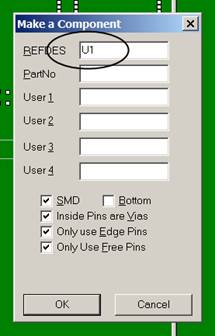
Click GERBER CONNECTION from the main menu and then click MAKE COMPONENT. For item REFDES type U1 and default the other items, click Ok.
Click the SET PIN 1 from the GERBER CONNECTION menu. Now click Pin One of the selected component U1 (pin 1 is in the upper left corner of the component). From the dialog box displayed select the direction that the other pins on the component sequence in (clockwise, counter clockwise, etc.). For our example click OK to use the default counter clockwise. The component U1 is now defined.
(Note: Pins must be assigned to all components made via the MAKE COMPONENT feature to insure a stable database. You can do this by either using the SET PIN 1 menu item outlined above or using the SET PIN NUMBER menu item. Pin numbers need to be defined even for 2 pin non-polarized devices. You only need to define the pins once for a shape and then when you use the FIND SIMILAR SHAPES feature the pin pattern will be automatically assigned to the next shape.)

Click the select TOOL (bulls eye) from the icons at the top, click either the center or any pin of the U1 component you previously assigned pins too. Component U1 should now be red in color which indicates it has been selected. Go to the GERBER CONNECTION pull down menu and click FIND SIMILAR SHAPE ( note shortcut keys to the right of the menu item can also be used, for example ^S ). The software will then find similar shapes to the U1 footprint at the same or different rotations. A similar package shape should now be highlighted directly above U1. The MAKE A COMPONENT box is automatically displayed asking you for identifying information for the selected component. Note that the REFDES box has automatically been incremented to the next component label U2. At this point you would normally enter the correct information for that component but for this demonstration please click AUTO. Note that all the components U1 through U64 have been automatically MADE.

(Note: After the components are made it is important to import the Bill Of Materials (BOM) as outlined in step 3 below to insure a stable database.)
Normally before removing a component It is important to import the Bill Of Materials (BOM) as outlined in step 3 below to insure a stable database.
To remove (Kill) a component that has been assigned either an incorrect reference designator, device type or has been assign to the wrong surface click the select tool (bulls eye) then select the component in question.

Click KILL COMPONENT from the Gerber Connection menu and click YES.

The component can now be assigned the correct reference designator by following the procedure above "2. Making the Component".
By using the Assign Nets feature ProntoGERBER CONNECTION can automatically create the Netlist from your raw gerber files in addition to the real reference designators, theta rotation, part numbers, X/Y component pin geometries, values, tolerances, etc. The netlist is a mandatory item for most Test Departments and repair technicians. ProntoGERBER CONNECTION does this by automatically tracking and connecting the copper traces on the PC Board assembly to the correct components, pins and vias for each net.
A netlist would normally be assigned by clicking the Assign Nets menu in
the figure below. For this demonstration we will not be creating a netlist.
Please contact Unisoft for details on how to use this feature.

Above we outlined the basic process for ProntoGERBER-CONNECTION. Quickly we can teach the entire PC board by repeating this process for each unique shape component. The standard order is the largest part shape is defined first then the next largest and so on in order of decreasing size.
Note: It is important to import the Bill Of Materials (BOM) as outlined in this step to insure a stable database.
You may import a Bill Of Material (BOM) and upon doing so the part number and descriptions contained in the BOM will be associated with the components on the display.
Click FILE on the main menu then click IMPORT BOM FILE. Make sure [Default] in the window displayed is selected. Click IMPORT and select the file SAMPLE-GERBER.BOM in the window displayed, then click OPEN. The BOM importer window shows:
Totals: 1 items, 64 references.
Complete.
Click CLOSE to shut the window.
This applies only to Unisoft software versions older than 5.24.0.0. Windows users: If the BOM importing above was successful then please skip this step. If the BOM importing above did not perform as outlined then please follow this step and try the BOM step above again. On installation a file named markup.ini is copied to the c:\windows directory. This file helps to import the BOM. Window security sometimes prevents the copying of this file. Please manually copy the markup.ini file located in c:\program files (x86)\unisoft or c:\program files (x86)\unisoft directory to the c:\windows directory. When you copy the file Windows will ask you if it's okay to copy it, answer yes. If the file is already there it is OK to overwrite it. Try the BOM importing step above again. Contact Unisoft for assistance, (enable JavaScript for our phone number).
Next click the INFO TOOL icon  which is the third icon from the left on the top menu. Then click on U1 on the display!
Note the Component Information window displayed may look different in different
versions of the software however for the fields displayed the data content will be the same.
which is the third icon from the left on the top menu. Then click on U1 on the display!
Note the Component Information window displayed may look different in different
versions of the software however for the fields displayed the data content will be the same.

Note that the U1 BOM information including Part#, Tolerance, Package, Description, etc. have been imported.
For details on how to import your own Bill of Material (BOM) click the following link: https://www.unisoft-cim.com/view-markup_bom_importing-your-bom-files.html .
At this point using the ProntoGERBER-CONNECTION software features above we have created the real reference designators, theta rotation, part numbers, X/Y component pin geometries, etc. This data is then used by Process Engineers to program SMT and Thru-hole Automatic Assembly Equipment, AOI inspection equipment, Selective Soldering and Test equipment. Also create manual assembly sheets, process documentation, kitting labels, First Article Inspection, etc.
If at this point you wish to see the process for programming your SMT and Thru Hole assembly machines then go to the ProntoPLACE manual by clicking or cut and paste into your browser the following link: https://www.unisoft-cim.com/place_download.htm . Once there then jump to the section 3: CREATE THE OUTPUT FILE USED TO SETUP THE ASSEMBLY MACHINE and continue this tutorial from that point forward.
NOTE: The manual that you are being redirected to contains all the same features below in this manual so you will not be omitting anything in your evaluation by going there.
If at this point you wish to see the process for programming your Automatic Optical Inspection (AOI) machines then go to the ProntoAOI manual by clicking or cut and paste into your browser the following link: https://www.unisoft-cim.com/aoi_download.htm . Once there then jump to the section 3: CREATE THE OUTPUT FILE USED TO SETUP THE AOI MACHINE and continue this tutorial from that point forward.
NOTE: The manual that you are being redirected to contains all the same features below in this manual so you will not be omitting anything in your evaluation by going there.
If at this point you wish to see the process for programming your Selective Soldering machines then go to the ProntoSELECTIVE-SOLDER manual by clicking or cut and paste into your browser the following link: https://www.unisoft-cim.com/soldering_download.htm . Once there then jump to the section 3: CREATE THE OUTPUT FILE USED TO SETUP THE SELECTIVE SOLDERING MACHINE and continue this tutorial from that point forward.
NOTE: The manual that you are being redirected to contains all the same features below in this manual so you will not be omitting anything in your evaluation by going there.
Unisoft offers many options for using gerber or CAD files for programming your Test equipment such as In-circuit ATE, Flying Probe, Boundary Scan,
Functional test, etc. Please contact Unisoft directly to have the correct option demonstrated.
For this tutorial we will open a PC Board with additional annotation notes and steps we have previously added. From the main menu click FILE click OPEN, click CONTINUE and select the file SAMPLE3.F2B and click OPEN and click NO in the "Save Changes to sample" window. The PC Board is displayed and click CLOSE in the "Messages from importer module" window.
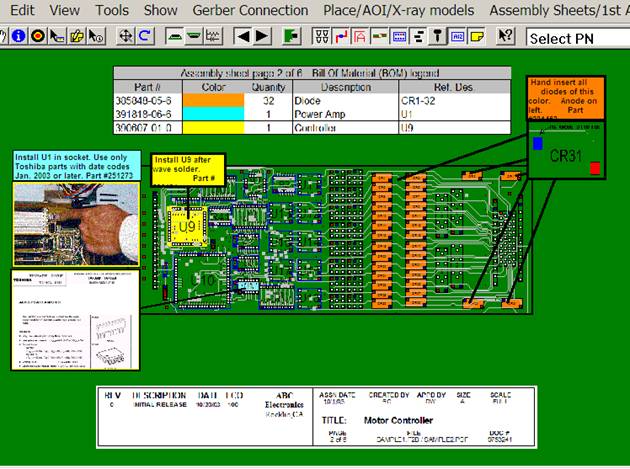
There are over a 100 features of the Unisoft basic software module ProntoVIEW-MARKUP below are a few example tutorials.
Note: More detail, an overview and other links for creating assembly documents, assigning Steps and Substeps, Coloring components, adding annotations, etc. can be found at https://www.unisoft-cim.com/assembly-docs-how-to-create-sample.html .
The Unisoft software allows you to quickly create matching assembly lists and assembly drawing sheets for each step in the assembly process. Part numbers are automatically assigned to the assembly step you wish (for example: Step 1 for Hand Inserts, Step 2 Chip Shooter components, etc). The part numbers are then automatically uniquely colored. If needed, overlay annotation notes can be added to each step. Next for each step matching assembly lists and assembly drawings are created. These drawings can either be printed or save to a file (PDF Adobe, etc.) or displayed on the screen.
To create assembly and process sheets on the main menu click ASSEMBLY SHEETS/1st ARTICLE then click OPEN SMART COLOR OPERATIONS and a new window appears at the bottom.
The SMART COLOR window at the bottom is sortable either by Part Number, Step Number, N=number of components for that part number, Operation, number of Pins on the component, etc.

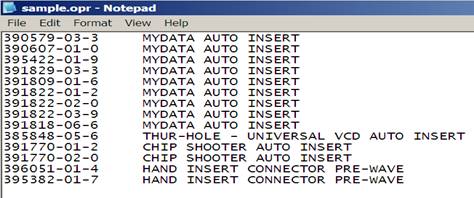
To assign an Operation to each part number from the main menu click EDIT then BOM then IMPORT LIBRARY (.OPR) and a new window will appear. In the window click on the file SAMPLE.OPR to select it then click OPEN. The result is that under the OPERATION field at the bottom of the screen each part number has been automatically assigned a operation step, for example Part Number 390579-03-3 is assigned Operation "Mydata / Mycronic AUTO INSERT".
The Operation field is optional and it is easily populated by the .OPR file which is a simple text file. The .OPR file contains the Part Number followed by a tab then the Operation text for that part number (Example: 396051-01-4 HAND INSERT SOCKET PRE-WAVE). The Operation information in the .OPR file is automatically assigned to every part number on the assembly. The SAMPLE.OPR file used in our example is located in the directory by default c:\program files (x86)\unisoft . Also the Operations can be manually entered by double clicking on the Part Number and editing the OPERATION field directly in the window provided. Then you can export and save the Operation information you have manually entered to an .OPR file by clicking EDIT then BOM then EXPORT P/N operation.
(NOTE: This exported file does not append to an existing .OPR file. It simply exports the Part Number and Operation field to a new file. Of course if you wish at that point you can manually append that file to another existing .OPR file.)
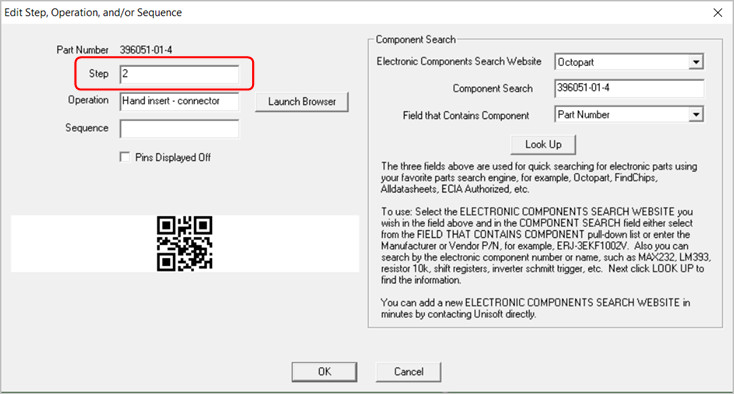
In the bottom window to the right of the PART NUMBER field you will find the STEP field. In this field you may optionally add STEP NUMBERS to part numbers in order to create separate unique steps in the PC Boards assembly process (for example: Step 1 for Hand Inserts, Step 2 Chip Shooter components, etc). To assign a STEP NUMBER to a part number at the bottom of the display double click on a part number and edit the STEP field with a step number. When the PC Board and BOM are first imported all steps are defaulted to step 1. Note that we have previously added step numbers 1 through 5 for our sample PC Board.
(Note for creating .F2P files: The .F2P files are where annotation overlays can be saved and stored for reuse. The .F2P files can contain 1 or more annotation overlay. These .F2P files can be imported for display into any PCB assembly ( PCBA ) in the Unisoft software and used simply for display or as part of the assembly process steps in the assembly documentation creation. For details on how to create .F2P files go to F2P-FILES.)
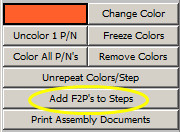
If needed overlay annotation notes can be added to each process step. To do this click ADD F2P'S TO STEPS.
The following window appears!
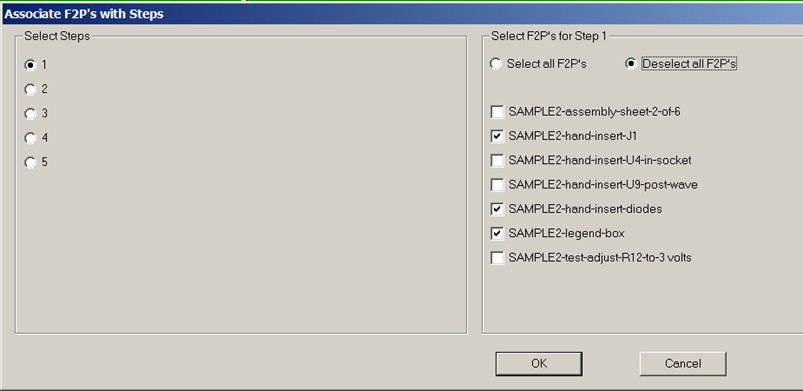
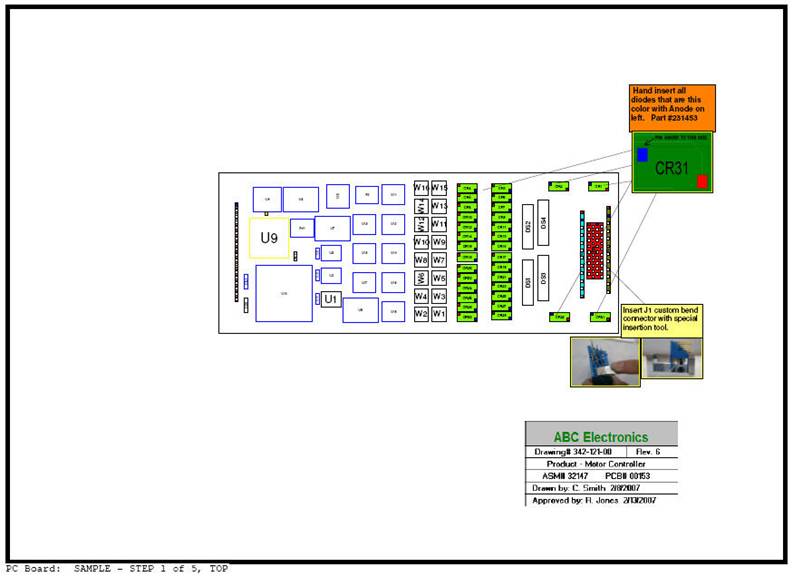
For our sample board we have previously created five process steps. Now for each one of these steps we can optionally add .F2P annotation overlay notes. In the figure above for example Step 1 is selected on the left and on the right 3 .F2P overlays boxes are checked. These four overlays will be printed on top of the PC Board display for step 1. The results would look something like the figure below. Please click on step 2 through 5 on the left side and you will see the .F2P overlays that will be printed for those steps.
(NOTE: The sample PC board we are working with already has 7 .F2P annotation overlays pre-loaded into it. It is not necessary now but in the future to add F2P Annotations to the Window above you need to Load them first. To Load Annotations from the Main menu click EDIT, click ANNOTATIONS then click LOAD ANNOTATIONS and select the .F2P file you wish to load then click OPEN.)
Note: More detail, an
overview and other links for creating assembly documents, assigning Steps and
Substeps, Coloring components, adding annotations, etc. can be found at
https://www.unisoft-cim.com/assembly-docs-how-to-create-sample.html .
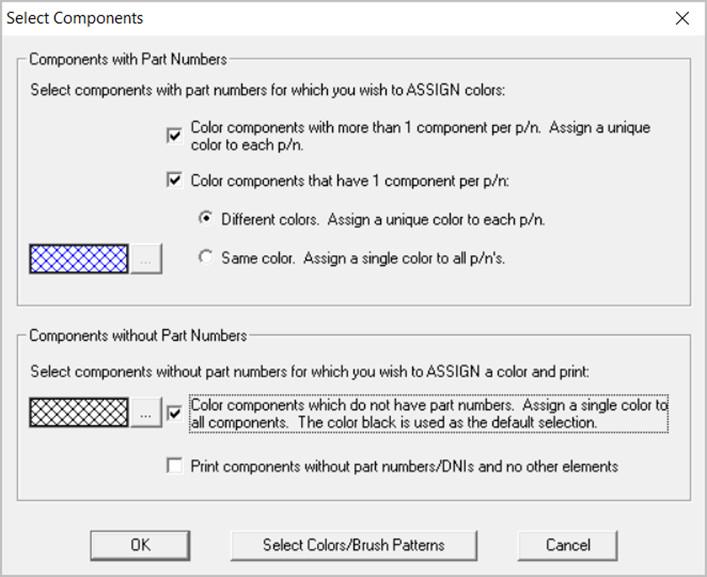
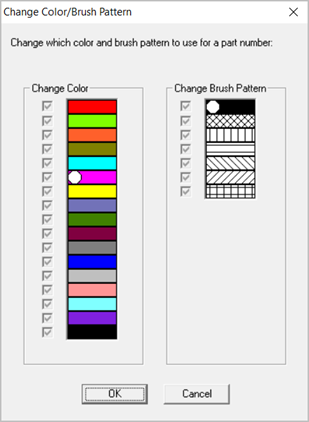
In the window at the bottom click the COLOR ALL P/N's button. The "select Components" window below opens. Put check marks in this window the same as illustrated below and then click OK.
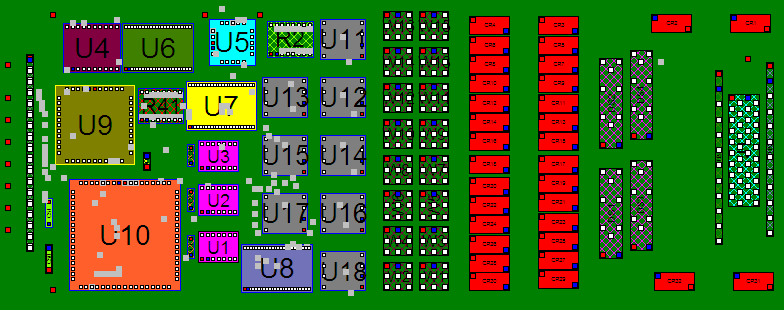
The result is that each part number and the components associated with that part number have been assigned a unique color and pattern according to the sort sequence of the part numbers in the SMART COLOR window at the bottom of the display. You also have the option to repeat the color sequence for each Step Number in the process. To do this in the window at the bottom click the REPEAT COLORS/STEP button and the colors on the PC Board will change. Note the same color will appear for different part numbers because these part numbers are in different steps. Click the UNREPEAT COLORS/STEP button again to toggle the colors to their previous state.
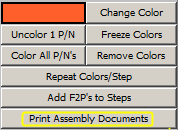
To freeze the colors that are currently applied to the part numbers click the FREEZE COLORS button located in the center right of the SMART COLOR window then click YES in the window that appears. Click UNFREEZE COLORS to unfreeze the colors applied to the part numbers.
The assembly instructions for this PC Board are now complete. For this PC Board we have previously added 5 process STEPS. To Print Assembly Sheets and matching Assembly Load Lists for each process step in the window at the bottom of the display click the button PRINT ASSEMBLY DOCUMENTS.
The following window is displayed!
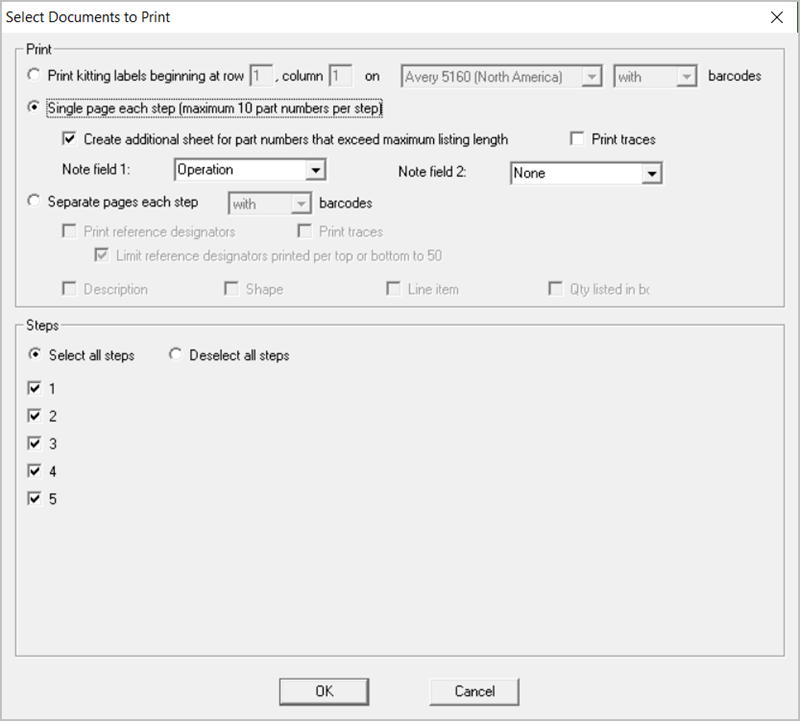
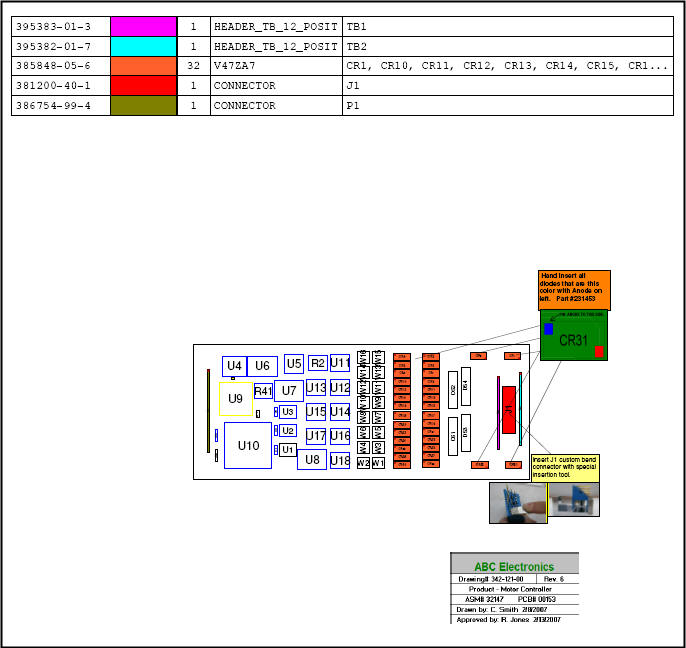
There are two options for printing Assembly Documents SINGLE PAGE EACH STEP and SEPARATE PAGES EACH STEP. The first option SINGLE PAGE EACH STEP results in a document that looks like the one below where each Step in the assembly process is printed on one sheet for each side of the PC Board assembly. Note in the figure below that the load list of the components to be inserted at that step are listed by part number at the top of the same sheet with the PC Board assembly under it and on the PC Board the components to be inserted at this step are colored with matching colors to the load list above it.
To print this drawing below in the window above under PRINT select SINGLE PAGE EACH STEP and under STEPS select select ALL STEPS. Next click OK and select the printer or PDF file you wish to print to and Click OK and the document will be printed.
Note: The check box above "Create additional sheet for part numbers that exceed maximum listing length" if checked will add an additional sheet for any part number with more components then will fit on the single sheet printout. Also NOTE FIELD 1 above is selectable to display the various data fields available and the data in that field will be displayed in the 4th column as in the figure below. NOTE FIELD 2 above can be optionally selected to be displayed and can also display the various data fields available. If NOTE FIELD 2 is selected the 4th field below will be split in half and NOTE FIELD 2 will be the 5th field.
The second option for printing assembly documents is SEPARATE PAGES EACH STEP which results in a document that looks like the two figures below. Each Step in the assembly process is printed on two sheets for each side of the PC Board assembly. Note in the two figures below that the load list of the components to be inserted is on its own sheet and the PC Board assembly drawing is also on its own sheet. The load list and PC Board assembly drawings have color matching components to be inserted at this step.
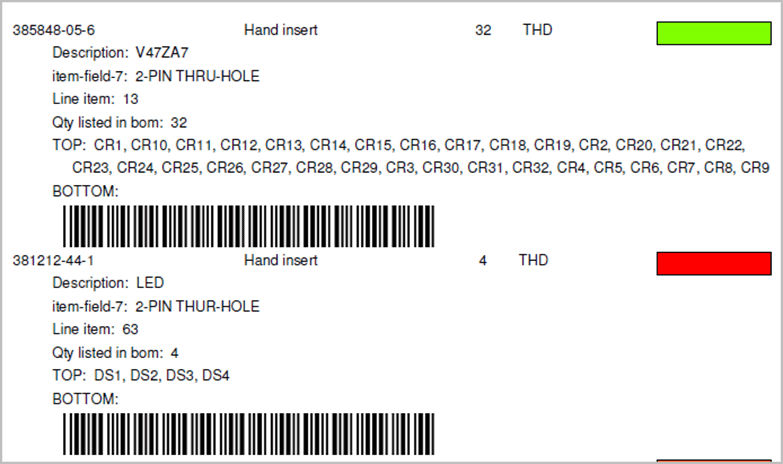
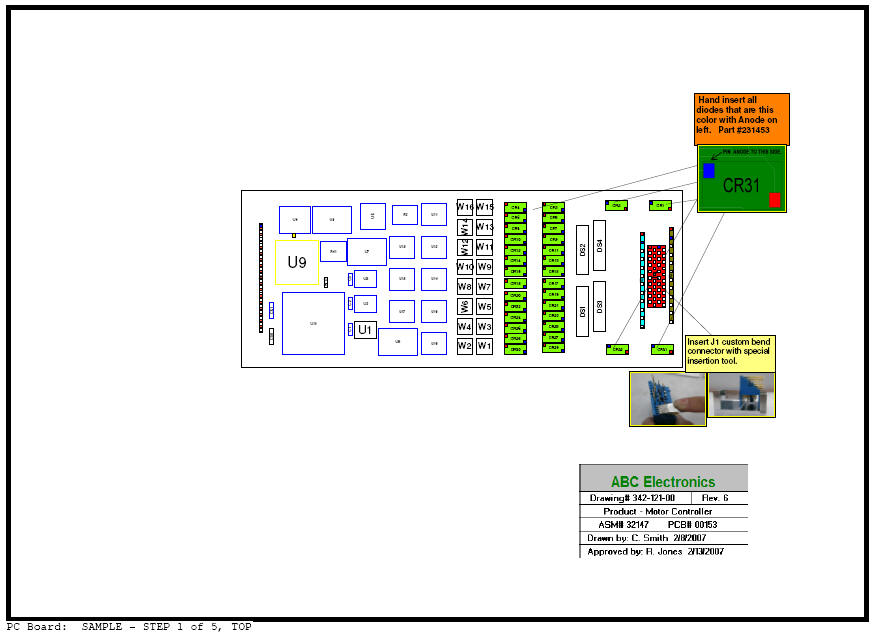
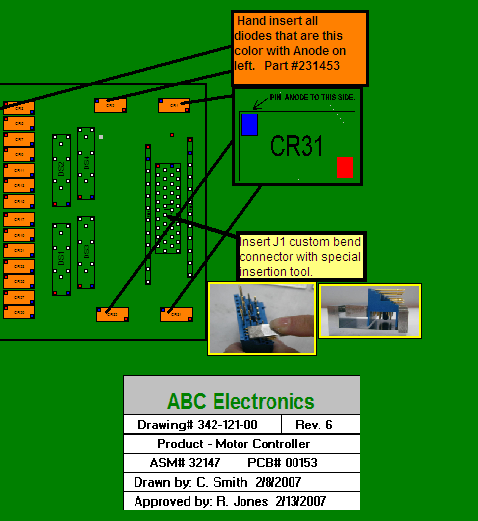
Note in the two drawings above that in the second drawing which is Assembly Sheet #1 of 5, CR1 to CR32 are colored green. Also printed are the 3 .F2P annotation overlays selected earlier for step 1 including "Hand insert all diodes that are this color", "insert J1 custom bend connector", and the legend box "ABC Electronics". In the first drawing which is the matching Assembly Load List Sheet #1 of 5, the third item is part number 385-848-05-6 which are components CR1-CR32 and for this item we have included automatically the part number, the operation text "hand insert diodes", the quantity of 32, the device type THD, the component part number color of green, and optionally additional Bill Of Material (BOM) information of tolerance/package/description and top side reference designate listings of CR1 through CR32.
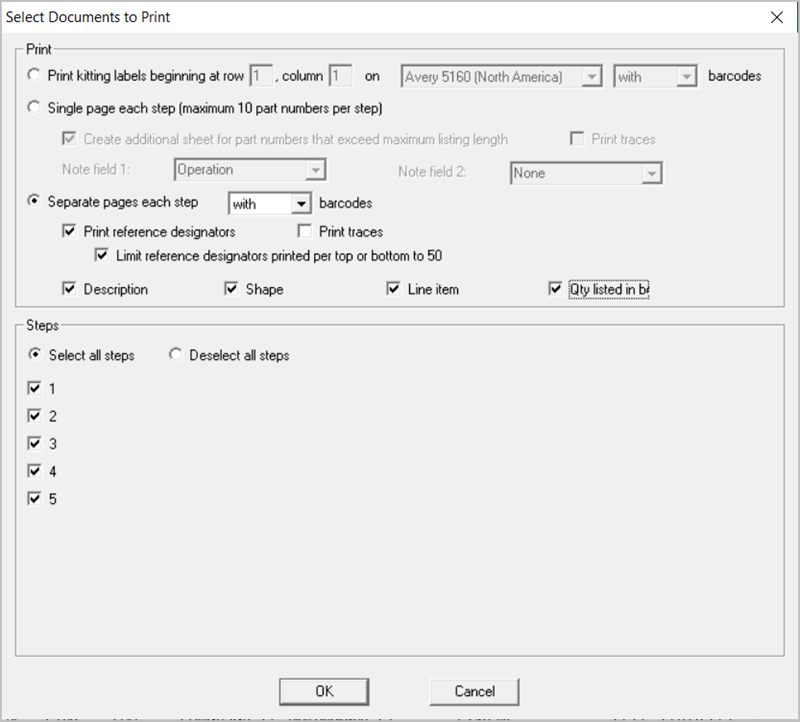
To print the drawings above at the bottom center of the main display click the button PRINT ASSEMBLY DOCS and the window below appears. Under PRINT select SEPARATE PAGES EACH STEP and then put a check mark in all the 6 boxes located under SEPARATE PAGES EACH STEP. Next under STEPS select select ALL STEPS. Then click OK and select the printer or PDF file you wish to print to and Click OK and the document will be printed.
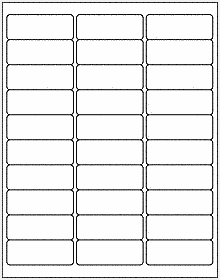
The Unisoft software allows you to quickly create Kitting Labels with barcodes for fast and accurate electronic component kitting. Quickly select the component part numbers for which you wish kitting labels created. Each label contains the part number, unique part number color, step number, p/n description, reference designator, etc. Fast and easy electronic kitting labels for kitting work orders.
Barcodes of various types can be printed on the kitting labels and shown on the display for quick kitting,
fast assembly machine feeder loading, verification, inspection, etc.: 2d-qr code, 2d-data matrix, etc.

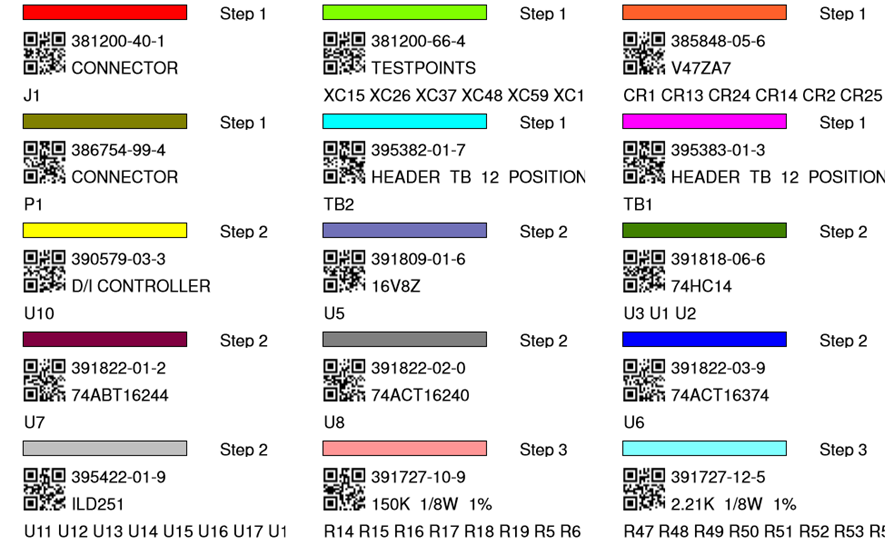
To use this feature the Smart Color window should be open at the bottom of the display and there you will see the field KITTING LABEL. By default all the thru hole component Part Numbers under the KITTING LABEL field are checked. All checked component part numbers will be included in the Kitting Label to be printed. You may add and remove checks as you wish.
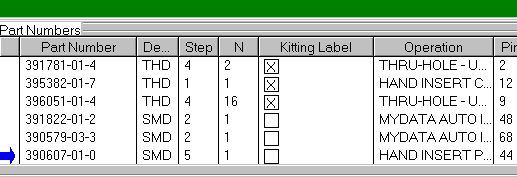
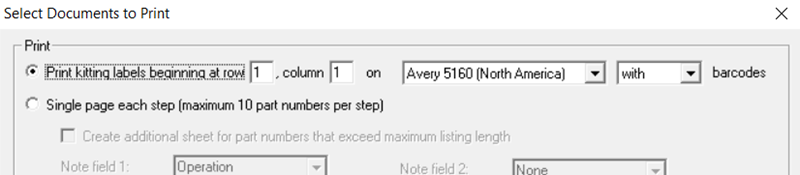
To print the Kitting Labels for the checked part numbers click PRINT ASSEMBLY DOCUMENTS at the bottom middle of the display. Next select the PRINT KITTING LABELS button and click OK and OK again and if asked select the barcode type then click OK and select your printer output.


This feature of the Unisoft
software allows you to add parts, processes, and other items that are not
part of the actual electrical circuitry on the PC board. These elements can
then be assigned to individual assembly process steps and treated like any
other step within the Unisoft
software. You can add just a few additional
steps or, if desired, define the entire PCB assembly process—from the
pre-assembly stage to the main assembly stage, and continuing through the
point at which the fully assembled PCB is integrated into its subassembly.
For how to use this feature and more information about this feature,
please click here.
For instance, if you need to add a PC board
card ejector by hand to the assembly process, you can enter that item along
with corresponding annotation text, notes, and pictures. You can then assign
it to a specific assembly step and treat it just like any other process step
in the
Unisoft software. In the figures above, we’ve added a non-electrical
part—specifically, a card ejector—labeled "Cardeje1" as its reference
designator, with a part number of CP-390E, onto the PCB and created an
additional step—Step 6—to manually insert that part onto the
PCB. Next, we
create and assigned one annotation containing text and another containing a
picture to step 6.
Then, in the example shown in the figure below, we
use the standard Unisoft “Print Assembly Document” feature to print Step
Number 6. If you choose not to print, the operator can simply work from the
on-screen display and complete the assembly—just like with any other step
operation.

Below are some examples of
non-electrical parts and processes that can be involved in completing a PCB
assembly. You may also create as many steps as desired—for example, you can
extend your steps to include pre-assembly and post-assembly processes.
For how to use this feature and more information about this feature,
please click here.
ASSEMBLY:
(Note for creating .F2P files: The .F2P files are where annotation overlays can be saved and stored for reuse. The .F2P files can contain 1 or more annotation overlay. These .F2P files can be imported for display into any PCB assembly ( PCBA ) in the Unisoft software and used simply for display or as part of the assembly process steps in the assembly documentation creation. For details on how to create .F2P files go to F2P-FILES.)
Additional text and graphics can be added to the PCB via annotation overlays and optionally saving them to .F2P files. To add annotation notes to the assembly similar to the figure below click the Annotation Tool button  on the top toolbar. Your cursor will change to
  .
.
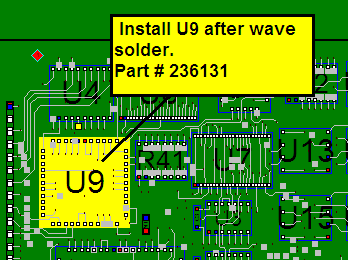
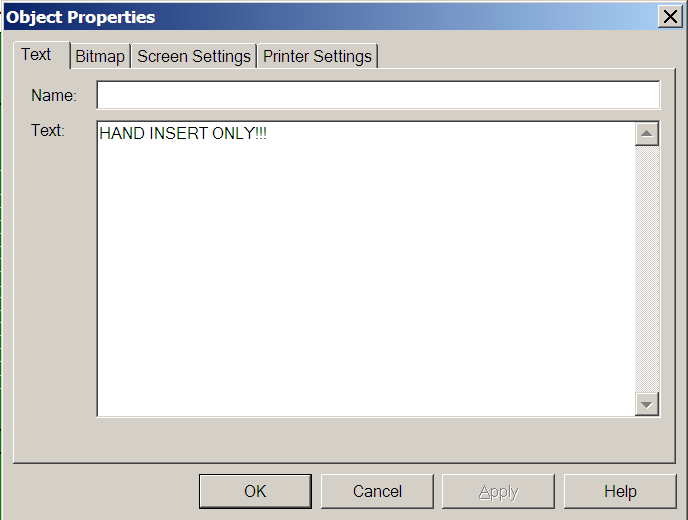
Drag a rectangle within a top or bottom view window. Release the mouse button after dragging your rectangle. The tabbed Object Properties dialog opens. This is where you can specify properties for your annotation.
Click the 'TEXT' tab or the IMAGE tab. If TEXT is selected, type your text in the Text box. The text will appear in the annotation as illustrated below. Click OK. If IMAGE is selected, import the desired image, click OK, and the image will appear in the annotation.
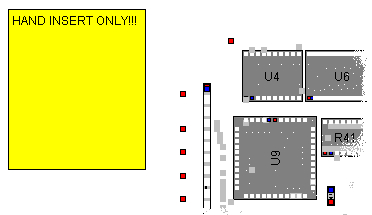
With the Annotation Tool selected, click the annotation you just added. For a text annotation, a shortcut menu with options will appear, as illustrated below. For an image annotation, a shortcut menu with options for modifying the image will appear.
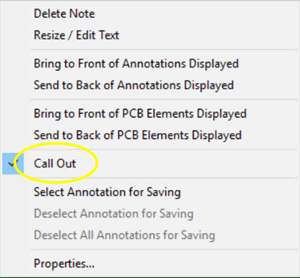
Click Call Out. A callout line appears to the right of the annotation. With the annotation cursor, click and hold the tip of the callout. Drag the callout to the desired location. While you drag, a thick line will stretch from the center of the annotation to the tip of your cursor. Note: If the tip of the callout is not in view, you may have to use the panning tool (TOOLS / PANNING TOOL) to move it into view. Release the mouse button. The callout line will move to the desired location.
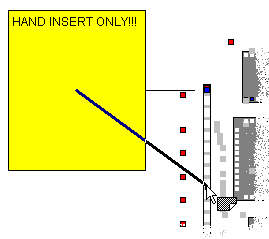
Click and drag the annotation to the desired location and note that the other end of the callout has not changed its anchor position.
Line draw tool: To create a line use the Line Draw tool by clicking the Annotation Tool button on the top toolbar until you see this icon
 with a vertical line on the left side of the yellow note then you are in the Line Draw mode. Similar to annotations, if you left-click on the line, you have the choice of deleting the line or changing its properties.
The CHOOSE F2P'S TO DISPLAY window allows you to turn on and off individual F2P annotation overlays that have been loaded.
Click the ANNOTATIONS icon  at the top of the display (it is the 3rd icon in from the right) and the "CHOOSE F2P'S TO DISPLAY" window below appears.
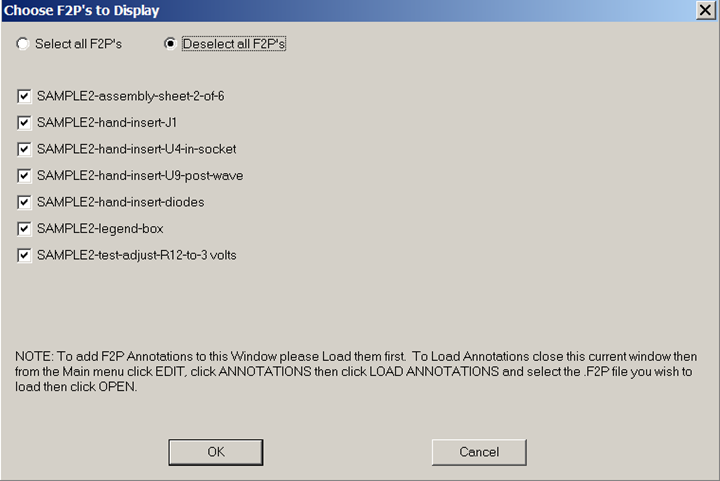
Our sample SAMPLE3.F2B file we are working with has the 7 sample .F2P Annotation overlays listed in the window above already loaded into it. These same 7 .F2B files are also on the directory by default c:\program files (x86)\unisoft. The list of the 7 F2P's are in the figure above starting with SAMPLE2-assembly-sheet-2-of-6.f2p. Feel free to load and unload them as you wish to get a feel for this feature.
NOTE: When you first start a new project no F2P annotations will appear in the window above. To add F2P Annotations to the Window above you need to Load them first. To Load Annotations from the Main menu click EDIT, click ANNOTATIONS then click LOAD ANNOTATIONS and select the .F2P file you wish to load then click OPEN.
The CHOOSE F2P'S TO DISPLAY feature is also in the included viewer software so for example in the figure below an assembly person on the production floor can select the HAND INSERT overlays to help guide them with assembly.
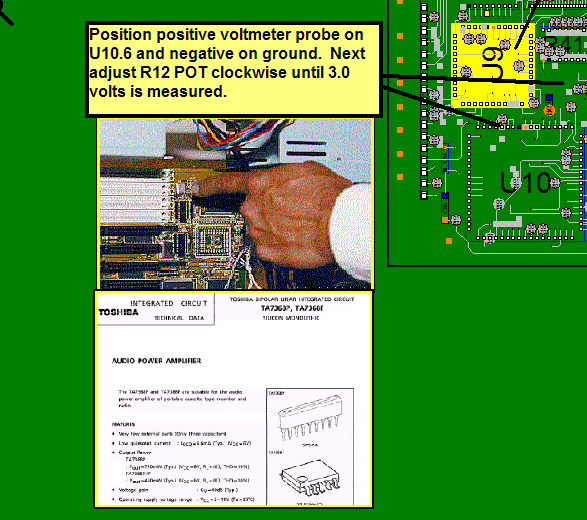
Or as in the figure below PC Board Test personnel can use the included viewer software to select the SAMPLE2-test-adjust-r12-to-3 volts.f2b overlay to guide them with a test setup procedure.
The ProntoVIEW-MARKUP included cad viewer & Gerber Viewer software can display these results for assembly personnel at their computers on your production floor or if you do not have computers they can be printed for exact assembly instructions, for example (PART NUMBER / OPERATION / NUMBER OF PARTS / COLOR).

Generally First Article Inspection is done on the first PC Boards assembled. When the assembly inspection is satisfactory at that point the PC Board can be built reliably in quantity.
After completing the tutorial above in the lower left of the SMART COLOR window at the bottom right of the display click REMOVE COLORS. In the window that opens click OK. The result is all component coloring is now cleared. Now single click the first part number displayed in the SMART COLOR window at the bottom under the "PART NUMBER" field. Then click BLINK 1 P/N located on the right side of the SMART COLOR window. This will blink those components with that part number. In real life the person doing the First Article Inspection would check each of those components for the correct part number installed. If all components with that part number are correct then they would check off that part number to indicate it is correct. Please do this now by clicking CHECK OFF 1 P/N located on the right side of the SMART COLOR window. Note a check mark has been inserted to the left of the part number indicating it has been completed and also a color has been inserted to the right of the part number in that same color has been applied to components with that part number on the displayed PC board. The inspector would continue this process for each part number until all part numbers are checked off and colored at which point that would indicate all components on the PC Board have been assembled correctly. At that point the PC Board can be built in quantity as needed.
The feature of blinking and coloring by part number or by a single component
("BLINK/COLOR 1 COMP") can also be used for other production floor operations.
For details, visit
www.unisoft-cim.com/first-article-inspection.html .
For example, for
hand-assembled components, the operator can select the part number they are
assembling by clicking that part number displayed in the SMART COLOR window
under the "PART NUMBER" field. Then, click "BLINK 1 P/N" located on the right
side of the SMART COLOR window. This will blink the components with that part
number. At this point, the person would assemble the components that are
blinking.
After all components with that part number are installed, they
would check off that part number to indicate it has been installed by clicking
"CHECK OFF 1 P/N" on the right side of the SMART COLOR window. A check mark will
then appear to the left of the part number, indicating it has been completed,
and a color will be applied to the right of the part number, which matches the
color applied to the components with that part number on the displayed PC board.
The hand assembly personnel would continue this process for each part number
they are installing by hand.
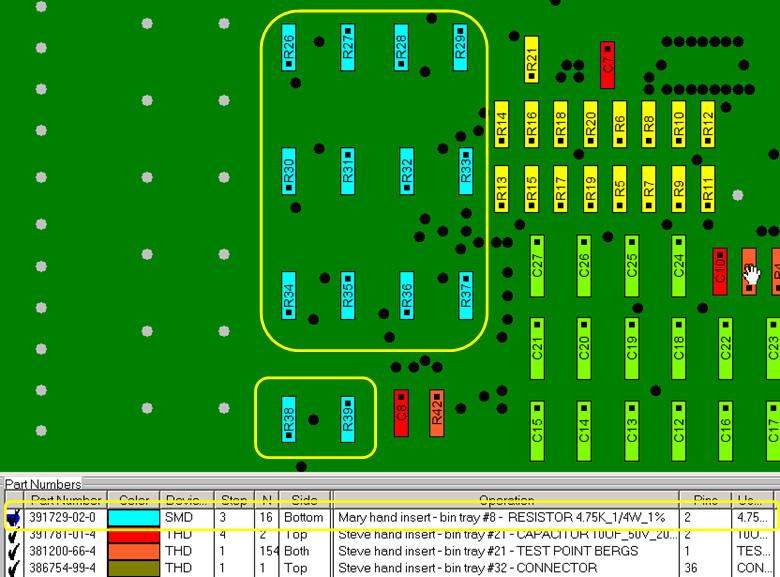
Note: Many customers that use this feature of Blinking and Coloring by part number for slide line hand assembly add additional instructions for the assembler in the Operations Field (see figure below). For example:
"Mary hand insert - bin tray #8 - RESISTOR 4.75K_1/4W_1% - p/n-391729-02-0"
Information such as this can be easily added automatically via the Operations Library or manually inserted.
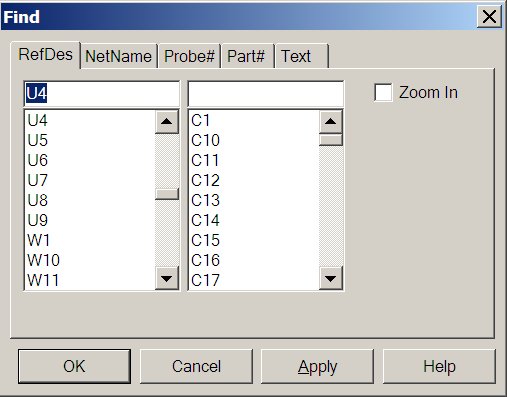
Using the FIND feature allows you to find a component or component pin. You can find a net trace or 2 net traces to identify where a short between two traces maybe. Search and find by netname or by part number. Also find by description field from the Bill Of Materials (BOM), for example find all "0.1uf capacitor". You can also find a Test Probe X/Y location and Test Probe number for your Bed Of Nails test fixture.
To open the FIND window either at the top of the display click the FIND icon  or from the main menu click EDIT then FIND. Next to search for a component type U4 in the top left field and click APPLY. The result is the cursor moves to U4 and U4 is highlighted in red. Note that APPLY finds what you are looking for and leaves the FIND window open for further finds or clicking OK closes the FIND window and locates the item you requested.
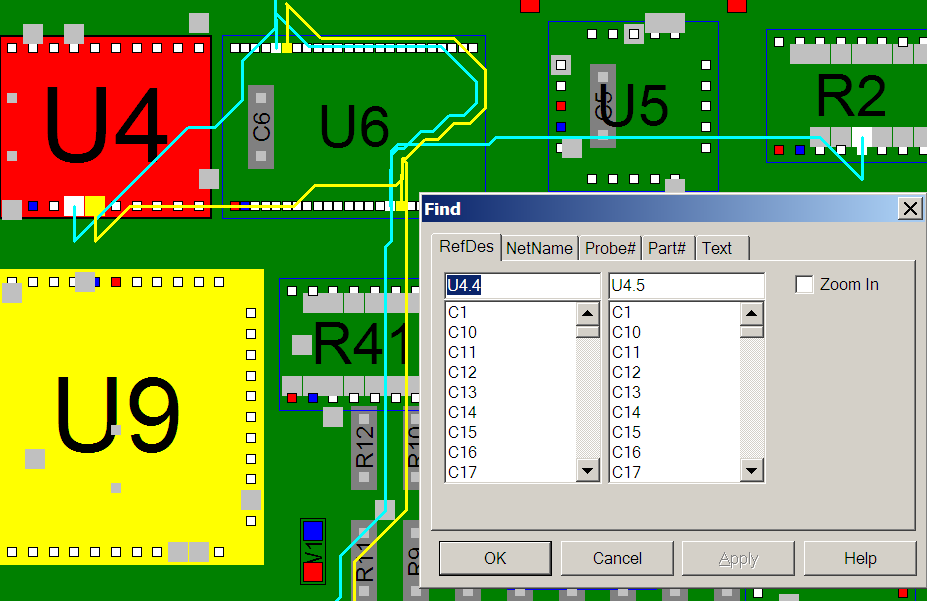
To locate a short between two traces in the FIND window in the top left field type U4.4 and in the top right field type U4.5 and click APPLY . Note as in the figure below the two traces in question are highlighted. One trace is in yellow and the other blue. A technician would then follow along the two traces and where they came closest to each other would be the most likely place to find the short.
Choose any of the other tabs to experiment with the different types of search options available. Click CLOSE to close the FIND window.
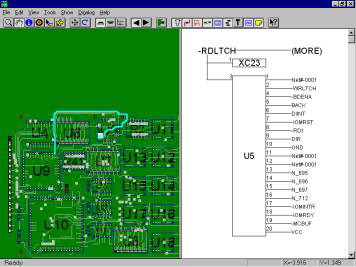
Click VIEW from the main menu then click RIGHT PANE. Click VIEW again then click SCHEMATIC. The right pane now displays "No Net selected". Click VIEW from the main menu then click LEFT PANE and select a net by either clicking the select tool (Bull's-eye icon) then clicking on a pin on the display or using the Find feature to select a net. The result is the schematic should be displayed in the right pane. The schematic view in the right pane is also an active display so by clicking any signal name or pin number on the right side on the components displayed will now navigate to that signal. You can now navigate any signal down its resultant path.
For further details on features and operations please review the manuals by clicking the "ProntoVIEW-MARKUP VIEW Manual" icon and clicking the "ProntoVIEW-MARKUP MARKUP Manual" icon in the Unisoft folder.
You will want to save your work initially or after adding annotations to your file. You can save your work as a .F2B file (complete board save) or as a .F2P overlay file (saves only annotations you have added).
To save as .F2B — On the FILE menu, click SAVE.
Note: If you want to save the file with a different name, on the FILE menu, click SAVE AS. The Save dialog box appears. Type a name in the FILE NAME box. Click OK.
An .F2B file contains all of the board information, plus the annotations. The board file is loaded first and then the annotation file is loaded on top of the board file. When you save the file, the system defaults to the original file name with a different extension. This file can be viewed by anybody using the VIEW-MARKUP software or any of the other Unisoft software modules. If you plan to send your annotated board along with the included VIEW-MARKUP program to another person, the F2B file is more convenient.
To save a .F2P overlay file — Click EDIT from the main menu, then click ANNOTATIONS and SAVE ANNOTATIONS. The Save dialog box appears. Type a name in the FILE NAME box. Click OK.
An .F2P file contains just the annotations you have added to the PC Board assembly display such as component coloring, notes and graphics. The .F2P can be viewed in conjunction with an .F2B or CAD files at a later time. If you want to develop multiple visual aids based on the same CAD file, or if you receive updated CAD files in the future, it is better to save F2P files. These files can then be loaded against the similar or updated PC Board design saving you the time of recreating the annotations. F2P's can be overlayed individually or stacked in combination.
All Pronto software modules have all the features found in the ProntoVIEW-MARKUP software and are compatible with MARKUP.EXE no charge PCB assembly ( PCBA ) CAD Viewer & Gerber Viewer Software. Normally this CAD Viewer & Gerber Viewer is used throughout the plant floor or given to vendors or clients for better communications. The CAD Viewer & Gerber Viewer has over 100 features that make it the ideal ONE TOOL for the various departments of a typical electronic manufacture. Features include viewing and printing out of the display, find by Reference Designator, Part Number and more. To give the included cad viewer & Gerber Viewer to someone simply send them the MARKUP.EXE and the .F2B file for your PC Board (MARKUP.EXE is usually located in the c:\program files (x86)\unisoft directory).
To open your own cad files you can use the smart open feature which will automatically detect cad files in a directory that can be imported into the Unisoft software.
To use SMART OPEN click FILE off the main menu then click SMART OPEN and point to the directory that contains your CAD files and follow the instructions to display your PC Board assembly.
The Unisoft software imports the standard ASCII file that CAD systems create. Each CAD system has its own format. To view a variety of the latest full CAD samples please see directory c:\program files (x86)\unisoft\data-files or c:\program files (x86)\unisoft\data-files and look for the files starting with SAMPLE_. For example you will find SAMPLE_PADS.ASC which is the PADS CAD systems ASCII output file. This and the other sample CAD files can be directly imported into the Unisoft software. Simply match your file to one of the samples and your PC-BOARD can be displayed with the Unisoft software.
An API function for external control is included if you need to operate the Unisoft software from your application or equipment.
The API is contained in the file REMOTEAPI.ZIP in the directory …\unisoft where you installed the software. Please unzip this file into the …\unisoft directory. The result should be directories …\unisoft\remoteapi\rapi_test.
See the file README.TXT in the directory …\unisoft\remoteapi\rapi_test on how to use the API. Also the files API.H and RAPI_TEST.C explain the functions.
ShowCurView
ZoomCurView
OpenBoard
SetCurView
ShowCurView
ZoomCurView
Rotate
Flip
MoveCurView
ClearBom
ClearAnnotation
ImportBom
ImportAnnotation
FindComponents
FindNets
We have supplied a function tester program. You can test out the functions by running RAPI_TEST.EXE in directory RAPI_TEST. See the readme above for details.
For example, run RAPI_TEST.EXE and type HELP to get general help or type HELP FindComponents to get specific help for FindComponents. If you type FindComponents 1 U11, the 1 will zoom the display to where U11 is located and component U11 will be highlighted. If you type FindComponents 1 U11.3 U6.9, then both the component U11.3 and U6.9 pins and traces will be highlighted.
Please note that when using the DOS command prompt test program — if you type Help at the command prompt (Enter>) you will get a list of all the API functions available to you. If you type 'help' and then the functions name (e.g., Enter>help OpenBoard) it will explain how to use that particular function. You should go through this tutorial to become familiar with the functionality of the API.
If you review the C code in the file (RAPI_Test.c) you will see how the actual DOS prompt program was written. You can write similar functions in your own code that will call up the program and launch the necessary API functions you wish.
Additional details on the Unisoft software features can be found on the Features page.
If you chose the default path on installation the software was installed to the directory c:\program files (x86)\unisoft. The executable program for the Unisoft software is MARKUP.EXE. The Icons group are installed in the PROGRAM GROUP under the Unisoft folder. Also shortcuts to the software and this quick start manual have been placed on your desktop.
Thank you for evaluating the Unisoft software. Please call us (enable JavaScript for our phone number) or email us (enable JavaScript for our email address) with any questions.