Bill of Material importing into the Unisoft Software
BACK
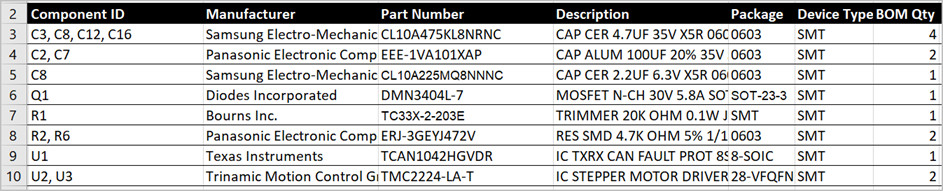
The Unisoft software can import virtually any Bill Of Materials (BOM) file. Upon
importing the BOM information it is fixed to each component and when the
component is selected that information is displayed. Additionally this data is
used for output from our assembly and test software modules.
The software by default is setup to import BOM data in TAB delimited format. You
may change and control how the Unisoft software imports BOM data by editing the
[BOM] section in the MARKUP.INI file located in the \WINDOWS directory (Note:
there is a backup of the MARKUP.INI in the default install directory c:\program
files\unisoft, however you must edit the MARKUP.INI in the \WINDOWS directory to
have any effect on how the BOM is imported.).
The MARKUP.INI is associated with the Unisoft software modules
ProntoVIEW-MARKUP, ProntoPLACE, ProntoGERBER CONNECTION, ProntoAOI and
ProntoTEST-FIXTURE.
BOM files come in two major types TABS or COLUMNS. Unisoft can import both of
these styles. For TABS you simply tell the software the tab position the data
resides at. Unisoft recommends using TAB formatted BOM's if possible. For COLUMN
style you tell the software the range of columns the data resides at.
TAB STYLE FORMAT SAMPLE #1:
Sample BOM:
FND Part Number Qty Tol Description Reference Package Operation
2 390607-01-0 1 0,0 I/O CONTROLLER U9 PLCC44 MYDATA AUTO INSERT
Import script located in the MARKUP.INI file in the \WINDOWS directory:
[BOM]
Quantity=3
PartNo=2
RefDes=6
User1=4
User2=7
User3=5
User4=8
In the TAB style the fields in the BOM are separated by tabs not spaces.
In the [BOM] section above the style defaults to TABS.
QUANTITY=3 in the [BOM] indicates that the third tab is where the Quantity field
will reside in the file. In this case 1.
PARTNO=2 indicates that the second tab is where the part number resides. In this
case 390607-01-0.
REFDES=6 in the [BOM] indicates that the sixth tab is where the reference
designator will reside in the file. In this case U9.
(Note that if the Refdes field contained U9-U12 the software would automatically
break it up into U9, U10, U11 & U12).
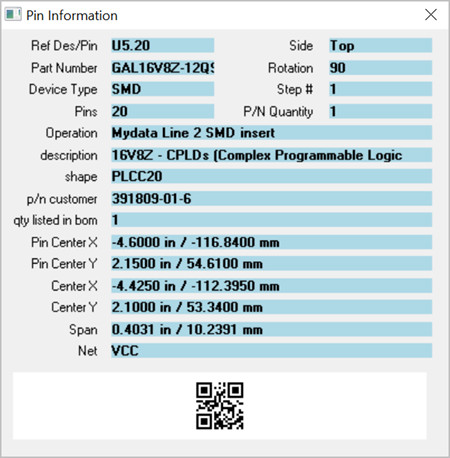
USER1=4 indicates that the fourth tab is where user field #1 resides. In this
case 0,0.
(Note: User fields #1-4 are optional. The User fields #1-4 allow you to attach
any additional message information to the components. If you do not use a User
Field then it must be set to 0).
USER2=7 indicates that the seventh tab is where user field #2 resides. In this
case it is the package type PLCC44.
(PLEASE NOTE: If your BOM contains a package type field then we recommend you
extract that part shape data into the User2 field. When creating assembly or AOI
setup programs the Unisoft software will include the user2 field package shape
data in the output files it creates.).
USER3=5 indicates that the fifth tab is where user field #3 resides. In this
case I/O CONTROLLER.
USER4=8 indicates that the eighth tab is where user field #4 resides. In this
case MYDATA AUTO INSERT.
Any fields in the [BOM] that are not used must be set to 0.
IMPORTANT: Do not define fields in the [BOM] section that are not consistently
throughout the file, if you do the MARKUP.INI will not read the BOM file at all.
For example if User4=7 but there is no consistent data in the 7th tab field or
there is no 7th tab field at all in the file then the MARKUP.INI importer will
not read the BOM file.
For Markup.exe version 5.9.5.6. or later you may change the names of the User
fields that are displayed on the screen. These user fields are displayed when
you click the INFO TOOL in the software then click on a component. If you do not
change the label then they are by default displayed as User1, User2, User3, and
User4.
You can change the user field labels by editing the [User Fields] section
located in the Markup.ini file in the WINDOWS directory. For example, if you
wanted to label User1=Tolerance, User2=Package, User3=Description and
User4=Operation then you would do this by editing the [User Fields] located
directly under the [BOM] section in the Markup.ini. For example:
[BOM]
Quantity=3
PartNo=2
RefDes=6
User1=4
User2=7
User3=5
User4=8
[User Fields]
User1=Tolerance
User2=Package
User3=Description
User4=Operation
TAB STYLE FORMAT SAMPLE #2:
Sample BOM:
C33 011-1276-00 CAP_100UF_10V_20%_RADIAL_ELEC FORMED_LEADS 1206 SECOND_SOURCE
[BOM]
Quantity=0
PartNo=2
RefDes=1
User1=3
User2=4
User3=5
User4=0
In the TAB style the fields in the BOM are separated by tabs not spaces.
In the [BOM] above the style defaults to TABS.
REFDES=1 in the [BOM] indicates that the first tab is where the reference
designator will reside in the file. In this case C33.
(Note that if the Refdes field contained C33-C36 the software would
automatically break it up into C33, C34, C35 & C36).
PARTNO=2 indicates that the second tab is where the part number resides. In this
case 011-1276-00.
USER1=3 indicates that the third tab is where user field #1 resides. The User
fields #1-4 allow you to attach any additional message information to the
components. In this case CAP_100UF_10V_20%_RADIAL_ELEC FORMED_LEADS.
USER2=4 indicates that the fourth tab is where user field #2 resides. In this
case it is the package type 1206.
(PLEASE NOTE: If your BOM contains a package type field then we recommend you
extract that part shape data into the User2 field. When creating assembly or AOI
setup programs the Unisoft software will include the user2 field package shape
data in the output files it creates.).
USER3=5 indicates that the fifth tab is where user field #3 resides. In this
case SECOND_SOURCE.
COLUMN delimited BOM:
Below is an example of a FIXED style BOM script located
in the MARKUP.INI file.
[BOM]
Style=Fixed
PartNo=1
PartNoLen=15
RefDes=26
RefDesLen=24
User4=51
User4Len=49
Quantity=17
QuantityLen=4
Filter=23
FilterVal=” ”
FirstLine=21
FirstLineVal=”.”
User1=0
User2=0
User3=0
User1Len=0
User2Len=0
User3Len=0
Style=Fixed means that the fields in the
file are in fixed columns (for example from an MRP
report output file). The other allowable style is
Tabs, which would mean that the fields in the file are separated by
tab (0x09) characters.
Partno=1 means that the part number field
starts in column 1. PartNoLen=15 means that the part number field
is 15 characters long. If Style=Tabs had been specified, then
PartNo=1 would have meant that the part number is the first field in
the file, and PartNoLen would have been ignored.
RefDes=26 means that the Reference
Designator (part name) field starts in column 26. RefDesLen=24
means that the refdes field is 24 characters long. If Style=Tabs
had been specified, then perhaps RefDes=2 would have been
specified to indicate that the second field on the line is the refdes field.
Similarly, User4 and User4Len
are used to specify how the User4 field (component value) is to be imported.
Quantity. Quantity is imported to validate
the input line. It is only checked for “all digits”.
Other fields that can be imported are User1
through User3.
The Filter and FilterVal
items are used only for Style=Fixed files. They specify a rule
that can be used to validate lines in the BOM file. If the line contains a
string at position Filter equal to the string specified by
FilterVal, then the line is processed, otherwise, it is completely
ignored.
The FirstLine and FirstLineVal
items are used only for Style=Fixed files. Together, they specify
a rule that can be used to identify the first or only line in a multi-line
entry. If a line contains a string at position FirstLine that is
equal to the string specified by FirstLineVal, then the line is
processed as the first or only line of a multi-line entry. Otherwise, it is
processed as a continuation line, and only the
RefDes portion of that line will be used.
COLUMN STYLE FORMAT SAMPLE #2:
Sample BOM:
40020861-000 99 0019 D1-4,D10,D11,D13-16,D18,D19
40020872-000 99 0020 D9,D12,D17
43020273-000 99 0021 FL1-4
48024012-032 99 0023 J10
46002099-000 99 0024 K1-8
43011142-001 99 0025 L1-7
40065014-002 99 0026 LED2,LED4
[BOM]
Style=Fixed
PartNo=1
PartNoLen=12
RefDes=26
RefDesLen=55
Quantity=0
QuantityLen=0
User1=0
User1Len=0
User2=0
User2Len=0
User3=0
User3Len=0
User4=0
User4Len=0
Filter=0
FilterVal=""
FirstLine=0
FirstLineVal=""
In the COLUMN style the fields in the BOM are separated by spaces not tabs.
In the [BOM] above the STYLE=FIXED indicates the format is Column type.
PARTNO=1 in the [BOM] indicates column #1 is the starting column for where a
part number may reside in the BOM file. PARTNOLEN=12 indicates column 12 is the
range where a part number may reside. Therefore the part number is imported if
it is within columns 1 to 12.
REFDES=25 indicates that column 25 is the starting column for where a reference
designator may reside. REFDESLEN=60 indicates the range for the reference
designator is 60 columns. Therefore the reference designator is imported if it
is within column 26 to 80. Note: In this sample there are multiple reference
designators indicated by dashes (Example: D1-4). The software will automatically
break it up into 4 components D1,D2,D3 and D4.
The other elements in the [BOM] are not used and therefore must be set to 0 or
"" .
COLUMN STYLE FORMAT SAMPLE #3:
3 PN00100282003C13,C134 C: FX CHCER 82PF 805 5% 100V
4 PN00101210007C193,C195,C198,C200,C202 C: FX CHCER 100PF 402 10% 16V
5 PN00101210007C208,C210,C212,C215,C217 C: FX CHCER 100PF 402 10% 16V
6 PN03112200102C23,C29,C483-498,C501-504 C: FX CHCER1200PF 402 5% 50V
7 PN00102212111C1258-1287,C1336-1359 C: FX CHCER1200PF 402 5% 50V
[BOM]
Style=Fixed
Quantity=0
QuantityLen=10
PartNo=14
PartNoLen=9
RefDes=23
RefDesLen=28
User1=0
User2=0
User3=0
User4=51
User1Len=0
User2Len=0
User3Len=0
User4Len=30
FirstLine=0
FirstLineVal=""
Filter=0
FilterVal=""