
- Software Products
- Trial Software
- CAD Translation
- Testimonials
- Overview
- Pricing
- Knowledge Base
- Contact Us -
- Languages
To select and display the netlist and trace runs you can either use the Select tool (bull's-eye icon) or the Find tool (binoculars icon).
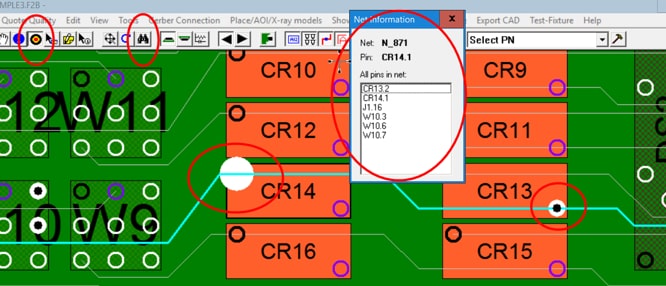
Select tool (bull's-eye icon): Click the Select tool (bull's-eye icon) and click on a pin on the net you wish to select. The first time you click on it the netlist information window will be displayed and all the pins on the net will blink. The second time you click on the same pin the netlist box will disappear and the pins on the net will stop blinking.
Find tool (binoculars icon):
Click the Find tool (binoculars icon) and type in the component and the pin of
the net you wish to select.
The result is the netlist information window
will be displayed and all the pins on the net will blink.
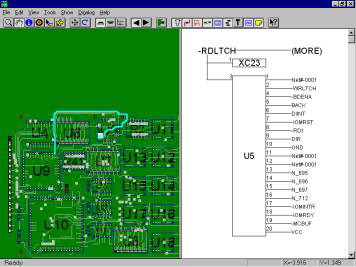
Click VIEW from the main menu then click RIGHT PANE. Click VIEW again then click SCHEMATIC. The right pane now displays "No Net Selected". Click VIEW from the main menu then click LEFT PANE and select a net by either clicking the Select tool (Bull's-eye icon) then clicking on a pin on the display or using the Find feature to select a net. The result is the schematic should be displayed in the right pane. The schematic view in the right pane is also an active display so by clicking any signal name or pin number on the right side on the components displayed will now navigate to that signal. You can now navigate any signal down its resultant path.
Using the FIND feature allows you to find a component or component pin. You can find a net trace or 2 net traces to identify where a short between two traces maybe. Search and find by netname or by part number. Also find by description field from the Bill Of Materials (BOM), for example find all "0.1uf capacitor". You can also find a Test Probe X/Y location and Test Probe number for your Bed Of Nails test fixture.
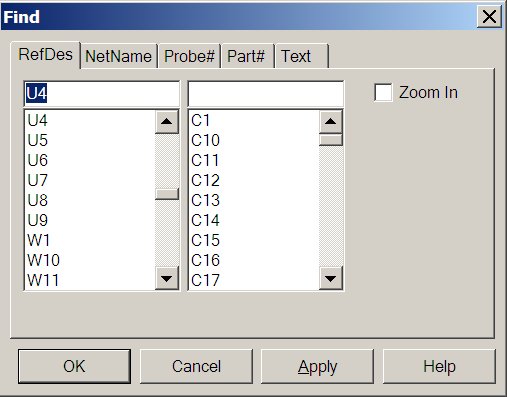
To open the FIND window either at the top of the display click the FIND icon  or from the main menu click EDIT then FIND. Next to search for a component type U4 in the top left field and click APPLY. The result is the cursor moves to U4 and U4 is highlighted in red. Note that APPLY finds what you are looking for and leaves the FIND window open for further finds or clicking OK closes the FIND window and locates the item you requested.
To locate a short between two traces in the FIND window in the top left field type U4.4 and in the top right field type U4.5 and click APPLY . Note as in the figure below the two traces in question are highlighted. One trace is in yellow and the other blue. A technician would then follow along the two traces and where they came closest to each other would be the most likely place to find the short.
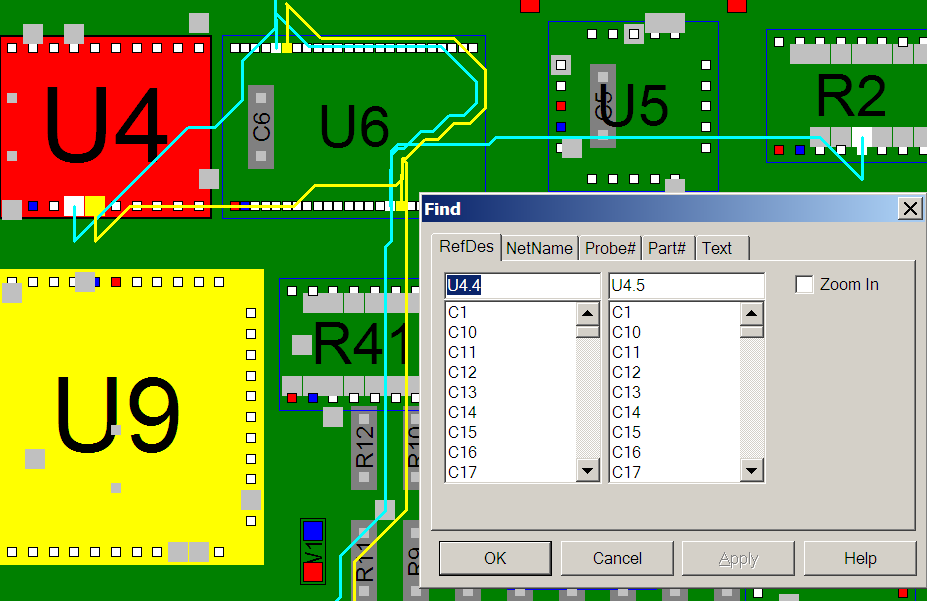
Choose any of the other tabs to experiment with the different types of search options available. Click CLOSE to close the FIND window.
Help for looking up part number information such as part shape, electrical
specifications, cost, availability, etc. on the internet can frequently be found
by using the Electronic Components Search feature of the Unisoft software.
The Electronic Components Search feature helps you find information such as
cost, availability, part shape, electrical specifications, etc. Provides fast
searching for electronic parts using your favorite parts search engine for
example Octopart, FindChips, Alldatasheets, ECIA Authorized, etc.
Search for electronic parts using the Manufacturer or Vendor P/N for example
ERJ-3EKF1002V . Also search by the electronic component number or name such as
MAX232, LM393, resistor 10k, shift registers, inverter schmitt trigger, etc.
To Use: Open the Smart Color window at the bottom of the display by clicking OPEN SMART COLOR OPERATIONS on the ASSEMBLY SHEETS/1ST ARTICLE menu.
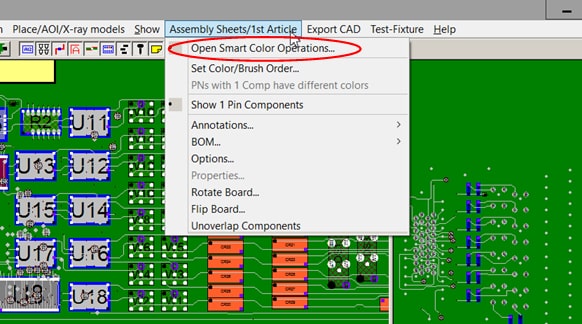
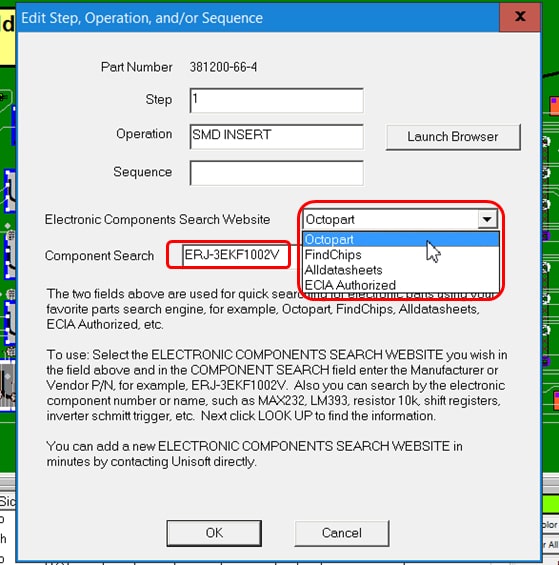
The Smart Color window at the bottom of the display appears. Double click the part number desired located on the left side of the Smart Color window and the window Edit Step, Operation, And/Or Sequence is displayed.
In that window pictured below select
the ELECTRONIC COMPONENTS SEARCH WEBSITE you wish and in the
COMPONENT SEARCH field enter the Manufacturer or Vendor P/N for example
ERJ-3EKF1002V . Also you can search by the electronic component number or name
such as MAX232, LM393, resistor 10k, shift registers, inverter schmitt trigger,
etc. Next click LOOK UP to find the information.
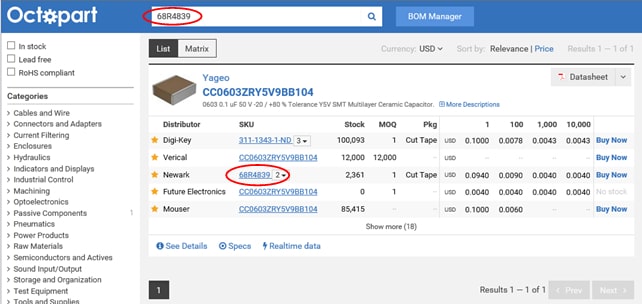
The result is Part Number information such as cost, availability, part shape, electrical specifications, etc. are displayed.
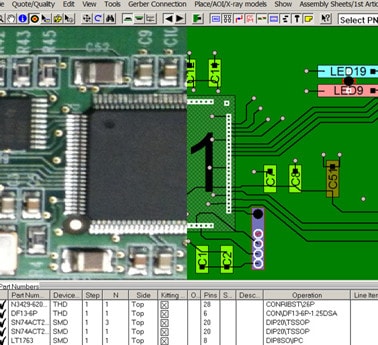
A photograph or any graphic of the actual PC board can be displayed with the intelligent PCB assembly data. This can help technicians recognize physical locations, connectors, devices, and crowded board areas while retaining access to the component, pin, net, trace, and BOM information behind the display. A popular technique is to use the high-resolution board image produced by an AOI system and overlay it on the Unisoft PCB display, combining the actual board image with Unisoft’s intelligent PCB assembly data.
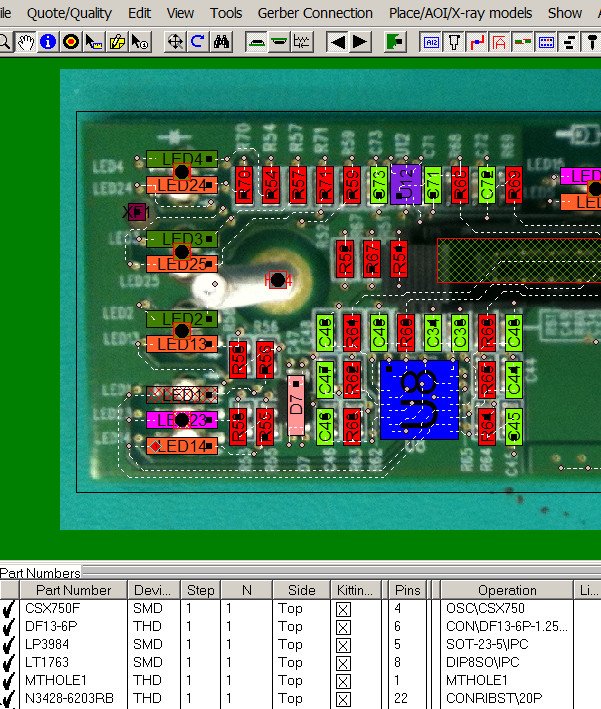
ProntoVIEW-MARKUP outputs a single PCB assembly board file that works with the included Unisoft viewer. With a current license, customers can distribute the viewer and board file to the production floor, test department, inspection, repair and rework areas, engineering groups, other divisions, vendors and customers. This gives the people actually doing the work direct access to the PCB assembly information they need.